Prepare a clean upload set
Start with the final listing set rather than every image from the shoot. Remove blurred frames, near-duplicates, outdated views and any image whose usage rights are unclear before you upload.
The current create page accepts JPG, PNG and WEBP images, so the important decision is not the file type itself but whether each image clearly helps explain the property.
Choose between the 6-photo and 15-photo workflows
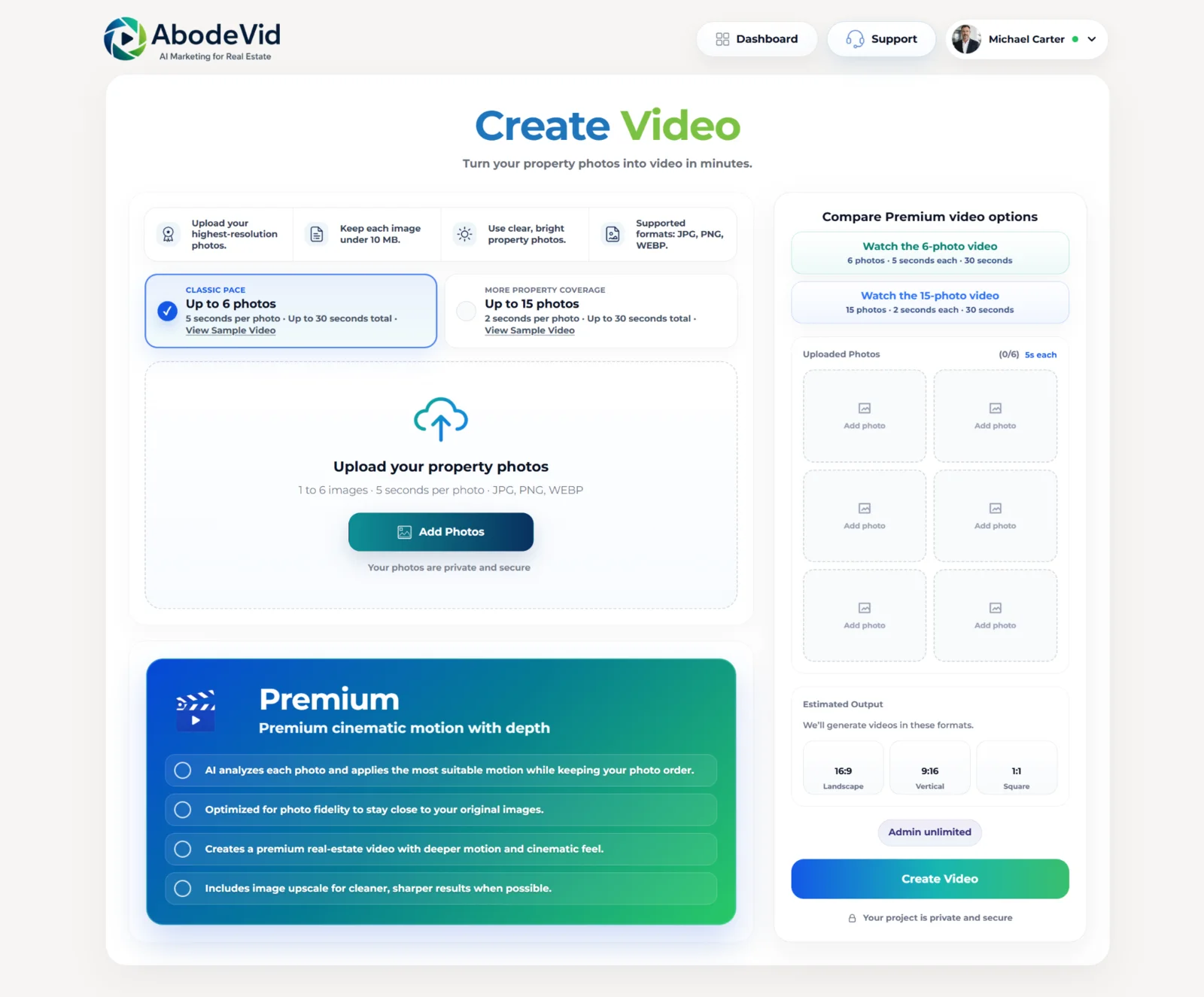
The 6-photo option is the tighter classic pace: up to 6 photos, 5 seconds per photo and up to 30 seconds total. This works well when the listing has a small set of very strong hero images.
The 15-photo option gives broader property coverage: up to 15 photos, about 2 seconds per photo and up to 30 seconds total. Use it when the listing needs more rooms or features but still fits a compact cut. If the property genuinely needs more than fifteen distinct frames, Cinematic 30 extends the live workflow to up to 30 photos and up to 60 seconds with AI-guided scene pacing typically around 1.5–2 seconds.
Use Premium motion without losing the story order
The current Create Video flow is Premium-led, but that does not mean the sequence should become random. Build an intentional room-by-room order first, then let the Premium engine apply the most suitable motion while keeping your photo order intact.
A practical residential sequence is exterior, entrance, main living area, kitchen, bedrooms, bathrooms and outdoor space. Change the order when one standout feature is the reason buyers will stop and watch.
Expect three ready-to-use output formats
The current create page shows three final output formats from the same listing: 16:9 landscape, 9:16 vertical and 1:1 square. That means the format decision is no longer just a planning note; it is part of the actual delivery package.
Use landscape for property pages and presentations, vertical for full-screen mobile placements and square where feed layouts or ad placements benefit from a balanced crop.
Complete the final accuracy review
Watch the generated video once for the property story and again for details. Pause on each scene to compare permanent features, furnishings, windows, people, pets and ambiguous areas with the source image.
Then verify property details, agent details, text accuracy, branding and any next-step messaging before the video is used in a real campaign.
Publish the video as part of the full listing campaign
The finished video should stay consistent with the rest of the listing campaign. Use the same approved facts, pricing, address and contact details across the property page, social posts and any follow-up marketing assets.
Treat the video as the core asset that leads into the rest of the listing package rather than as an isolated export. That keeps the property presentation clearer and more professional across every channel.